A shop owner with two helpers in the godown
- Today. The helpers count from a printed list that already shows the book figure.
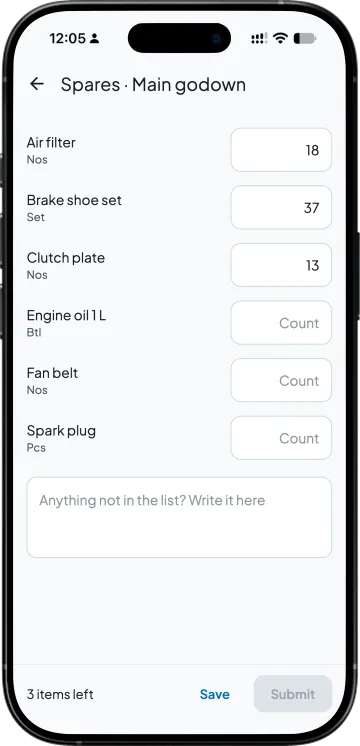
- With Takkada. Each helper gets a list of item names and units with an empty box for every item.

A counter who can see what the books say tends to write it down. In Takkada the count is a list of item names and units with an empty box beside each, and the numbers meet the book stock only on your review screen.
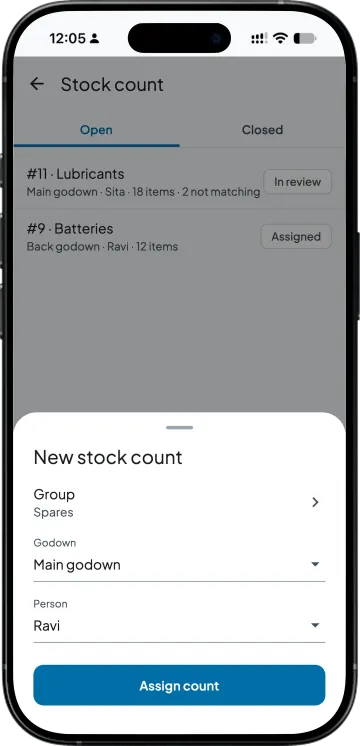
A stock group, a godown and a person. The count shows on the Stock count tile on their home screen, with Open and Closed tabs, and the tile shows how many counts are waiting for them.
The counter types what is on the shelf for each item, zero included, saves as they go and submits once every item has a number. Anything on the shelf that is not on the list goes in a note for you; you add the item in Tally.
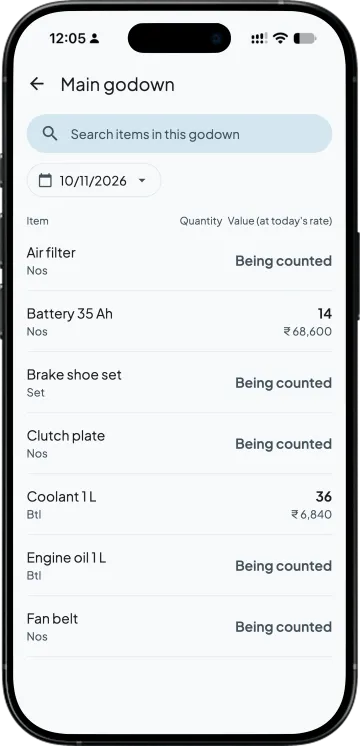
While the count is open, those items' stock reads Being counted for the counter across Takkada. Cancel the count and nothing is posted, and the counter sees the stock again.
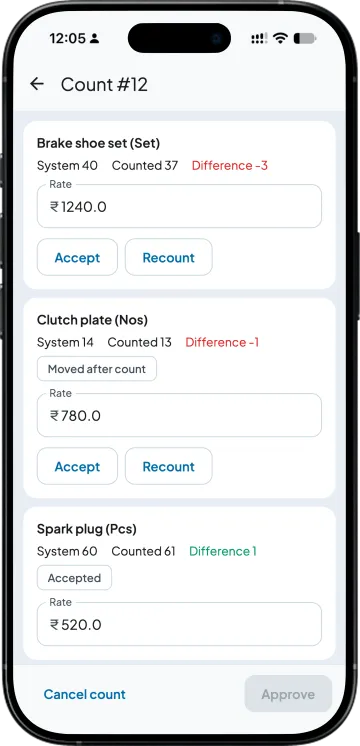
The owner or a full-access member sees book stock, counted, difference and rate for every item. The person who counted cannot review or approve their own count.
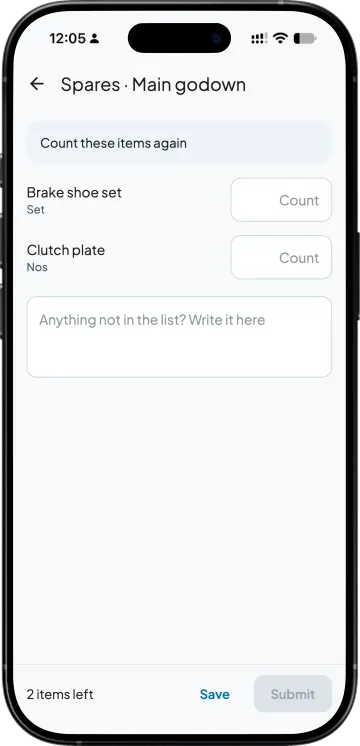
Send one item back and the counter sees only that item, with an empty box, so the first number cannot steer the second. Approval then makes the stock journal for Tally at cost rate. Batch-wise items are counted but left out of the journal; adjust those in Tally by batch.
| What you need | Tally with Takkada | Printed count sheet |
|---|---|---|
| What the counter is given | Item names and units with an empty box each. | The stock summary, book figure included. |
| Saving progress | Saved as they go; the screen shows how many items are left. | Pages on a clipboard. |
| Items not on the list | Written in a note for you to add in Tally. | Scribbled in the margin. |
| Who checks the count | You or a full-access member, never the person who counted. | Often the same person who counted. |
| A doubtful figure | That one item goes back with an empty box. | Counted again with the first number in mind. |
| After approval | The stock journal made for Tally, at cost rate. | Typed into Tally at the computer. |
The counter needs a data connection while counting and their own Takkada login; each extra person is an Extra user on your plan. Batch-wise items are counted but left out of the journal; adjust those in Tally by batch.
Physical Stock Count is an add-on, priced by your partner. Ask them for the add-on price, or message us and we will switch it on for your company.
Momentum ₹3,375/year + GST on a 3-year term
See what every plan includesYes. The count is assigned to another member of your team on their own Takkada login, and you cannot assign a count to yourself. Each extra person is an Extra user on your plan.
Not in Takkada while the count is open: the items on their count read Being counted on the item page, in stock reports and in the billing picker. If they also have Tally on a computer, Takkada cannot hide it there, so pick a counter who does not.
The counter writes it in the note box at the bottom of the count, and you see it when you review. Takkada does not create the item; add it in Tally and it comes onto the next count.
Up to 500. Pick a subgroup for a bigger group, and note that the same item cannot sit on two open counts in the same godown. Zero-stock items are included, so the list gives nothing away.
Yes, at any time before you approve. Nothing is posted, and the counter can see the stock of those items again straight away. To count that group later, assign a fresh count to the same person or someone else.
Stock count is part of the Physical Stock Count add-on, which is priced by your partner and switched on for each company separately. Ask your partner for the price, or message us on WhatsApp and we will switch it on for your company.
Book a demo. We walk through your setup, your Tally version, and exactly what changes for your business.